
skip to main content
14539468928e429f2da74154ccea470c Add a Site-Wide Announcement in Joomla | Cube

Weather or Special Site Announcementknowledgebase_joomla3


1. Login to your website administrator (http://yourwebsite.com/administrator)

2. Click "Extensions" and "Modules" from the top menu.
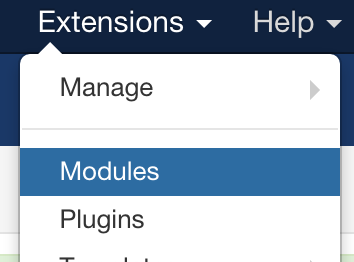
Iu2b_3kTUHprX3Q-qiis6qXKPE5QtImEQp6NM8kew718b_AQ5uHRm3DHvWTCqUxeHyOx-iYrUy0TXJ20aNAEk8N1ms2hclWtRTit8mC2K7MfLMtAMtS6YZs3rZBGwL28yHv1LTt904QLosCInA Add a Site-Wide Announcement in Joomla | Cube

3. Click "Weather or Site-wide Announcement." (This name may be slightly different based on your site.)

e_OhAZEBZMJjpJjIy4ONw6tMq1AbqS2lZEAGbGWBlwyN_0UT_hiP_NtaD9jvhcP9SVkewboQrNi7trp6es1rp2XAu9_JUM3jtOC-selQKnM28CEIFiWWv9crBnbTfe3R9NRbjZzHdSHvpqTeXQ Add a Site-Wide Announcement in Joomla | Cube

4. Edit your message.

5. On the right side of the screen, make sure "PUBLISHED" is selected. Change your START PUBLISHING and FINISH PUBLISHING date and time. Your message will appear automatically between those values. You won't have to come back to remove the message if the date and time is set correctly.
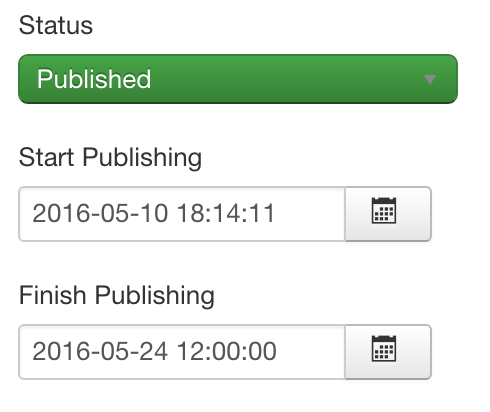
FfVWfCoYKjyGPqWJi65REGPsf7LvBvnRzP-lE7I6Gk-Ymj1A5Dxcob0u9u8f8wrmM46Le6Ck5AYee3SnrB_VBg0LpUkEG2qKsQZPWVTGv2OkHtoISgZdtOK0XkP6cnTixSYTOSHY4vqFJl9oyA Add a Site-Wide Announcement in Joomla | Cube

6. Click "SAVE AND CLOSE." Your message is now set.